
About Click Interval
Click Interval is a desktop toolbox for people who need to repeat mouse and keyboard actions without writing automation scripts.
It is made for repetitive desktop work, software and interface testing, controlled demonstrations, accessibility workflows, and other tasks where the same input needs to happen more than once. The current test build focuses on the Auto Clicker and Macro tools.
Auto Clicker
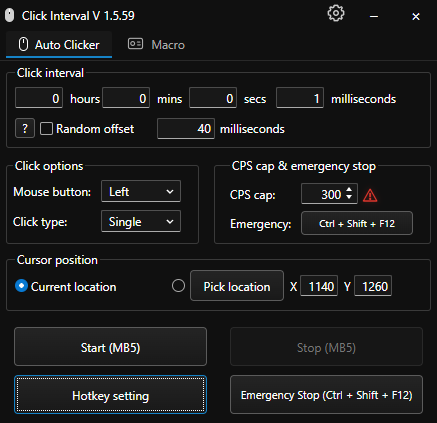
Auto Clicker repeats one mouse action at a controlled rate. Use it when the action itself stays the same and only the timing, button, or screen position needs to be configured.
Interval
Set the time between clicks in hours, minutes, seconds, and milliseconds. Random offset can vary each interval by the number of milliseconds you choose instead of using the exact same delay every time.
Mouse action
Select the left, right, or middle mouse button and choose a single or double click. A CPS cap places a hard limit on the maximum click rate even if the interval is set lower.
Cursor position
Use the cursor's current location so clicking follows wherever you move the mouse, or pick fixed X and Y coordinates so every click is sent to one screen position.
Control and safety
Assign a keyboard key or mouse button as the start and stop hotkey. The separate emergency shortcut immediately stops clicking and disarms the active hotkey if the configured action needs to be interrupted.
Macro
Macro is for complete input sequences. It records what happens, keeps the timing between events, and plays the sequence back in the same order.
Record a sequence
Start recording, perform the mouse and keyboard actions, then stop. Click Interval stores clicks, key input, cursor movement, and the delays between those events. Recording quality controls how frequently cursor movement is sampled.
Playback settings
Run a macro once, repeat it a specific number of times, or keep repeating until stopped. Playback speed ranges from 0.25× to 4×, with optional start delay, loop delay, and timing variance.
Playback behavior
The app can minimize when playback begins, return the cursor to its original position when playback ends, or stop as soon as physical keyboard or mouse input is detected.
Files and shortcuts
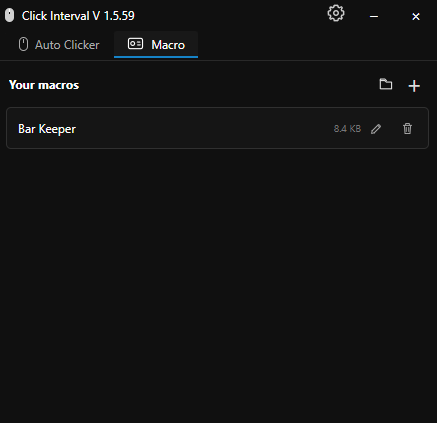
Save recorded sequences to the macro library and open existing macro files later. Separate global shortcuts control Record / Stop and Play / Stop without bringing the app window to the front.
Choosing a tool
Use Auto Clicker when one click needs to repeat at a specific interval or position.
Use Macro when the task contains multiple clicks, cursor movement, keyboard input, or different delays that need to play back as one sequence.